
Model guides
Improving your broadcast: Intermediate level
2 Games & Bots
- Games
- Bots
Games
On the website we have two types of games:
- Goal
- MultiGoal
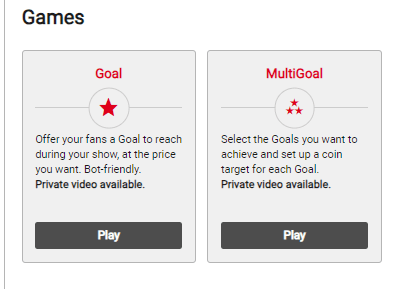
Goal
To start this game we press the Play button, then we have to fill in:
- Coin target: Set the amount of coins we want to collect to complete the goal.
- Describe your goal: We have to write what we will do when we reach the set coin target.
Once we have this filled in, we press the Start Game button, then we’ll see in the Goal section the word “Playing” and it will be underlined in red. In addition to this, in our room chat we’ll see a message encouraging users to try and reach the Goal.
MultiGoal
This game consists of a series of goals that we’ll need to complete. We also start the game by pressing the Play button, and then fill in the details:
- Describe your goal: We write the goal we want to do.
- Coin target: We set the amount of coins we want to receive to complete the goal.
To set up a series of goals, we press the Add a Goal button to add them. On the left side we can see the goals created with their amount of coins and it will give us the option to “Display current goal only”, we can activate it if we want to see how close we are to reaching the coin target with each tip we receive.
Finally, once we have everything set up, we press the Start Game button. In our room chat, we will see a message telling the users that we have started the game.
Things to consider for both games
- To view the details of the game, we can find in the upper right corner of our broadcast, next to the list of users, the GAME panel. It will always be marked with a red exclamation mark while the game is active and will show us the details to complete the game and start a private video.
- When we collect the set amount, we’ll need to complete the goal for that coin target. This way users will be happy and will come back every time we connect. 🙂
- Both games cannot be activated simultaneously.
- To avoid issues with the collected coins, we have to remember to always press the Completed button before ending the broadcast.
Private Video
Once we have a game started, in the GAME panel, we can find the Private video option, which allows us to do a Private show where the chat will still be public for everyone, but only those who tip the amount of coins set will be able to enjoy the Private. This option is great when we want to make the most of the users’ interest during our show but not limiting it to an Exclusive Private.
Important! Never leave the cam alone while this option is activated.
Bots
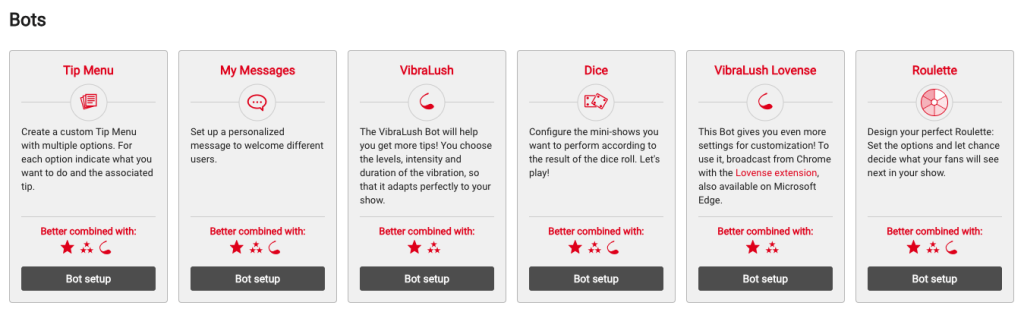
This is another option to bring joy and energy to our rooms. Currently, we have 7 bots to choose from:
- Tip Menu
- My Messages
- VibraLush
- Dice
- VibraLush Lovense
- Roulette
- Reactions
Tip Menu Bot
With this bot, we can add mini shows that we want to perform for a smaller coin target. This means users can tip coins and get a mini show immediately, as opposed to the games, where the amounts are higher and they have to wait longer to be able to visualize the set goal or goals.
Note: It is better to set tip vales that are different from the VibraLush levels, so we won’t get confused with the amounts received.
My Messages Bot
This bot allows us to have a more animated chat by displaying automatic messages previously setup. It gives us the ability to please users according to their prestige and the ideal scenarios that we set up; thus gaining more viewership and increasing the loyalty rate of our shows.
Dice Bot
This bot gives us the option to do mini shows according to what the dice results are. It’s so much fun! And it gives the users that feeling of intrigue, since they can’t choose, it’s random.
This randomness is configured by the probability we have chosen for each mini show. For example, if we want to do a sensual dance more than an ass flash, we can set a higher probability for the dance and a lower probability for the flash.
For this bot, we have to set a unique amount for the user to roll the dice, preferably different from the VibraLush and Tip Menu levels, to avoid confusion.
Roulette Bot
This bot gives us the option to set up to 12 mini shows for our users to spin the roulette wheel for an amount of coins that we set.
It’s different from the dice bot because we can’t choose the probability of the shows, they will all be the same.
It’s great to see the roulette wheel spin! Encourage everyone to play.
Note: At the bottom of each bot listed, we can find what it is “best combined with” and so we’ll know which game or other bot we can mix it with.
Reactions Bot
With this bot, our fans can send animated effects over our broadcast in exchange for coins: hearts, kisses, flirts, coin bombs… The whole room sees each reaction at the same time, and it counts as a regular tip for that amount: it adds up toward our Goals, triggers our toy and leaves its tip message in the chat.
To turn it on, in the GAMES tab, under Bots, we find the Reactions card and click Bot setup. There we can:
- Turn each reaction on or off individually.
- Set the price we want for each one, between 2,000 and 999,999 coins.
- Start the bot: our menu with our prices posts in the chat automatically.
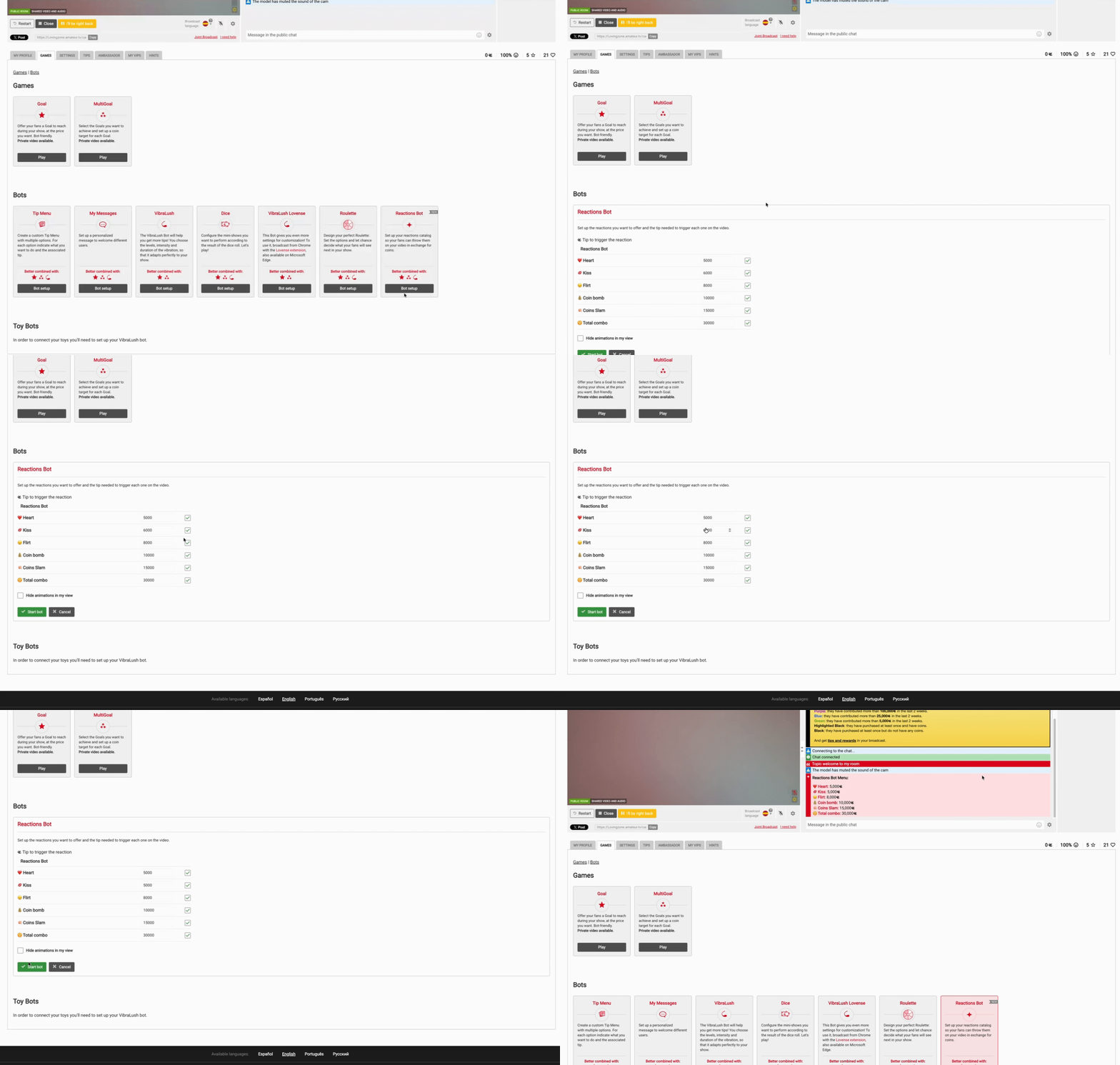
If we change prices while the bot is running, they apply instantly, with no need to restart it. When we stop it, a closing message appears and reactions can no longer be sent.
There are six reactions. These are the suggested prices, but we can adjust them to suit our room:
| Reaction | What it looks like | Suggested price |
|---|---|---|
| ❤️ Heart | Hearts over our broadcast. | 5,000 |
| 💋 Kiss | A kiss over our broadcast. | 5,000 |
| 😉 Flirt | A neon message over our broadcast, translated into each fan’s language. | 7,500 |
| 💰 Coin bomb | A coin bomb dropping over our broadcast. | 10,000 |
| 💥 Slam | A big hit on screen showing the reaction’s amount. | 15,000 |
| ☢️ Total combo | Every effect chained together: hearts, kisses, confetti, flirt, coin bomb and slam. | 30,000 |
Our fans send them from the bot’s message in the chat, with the button under every reaction another fan sends, or from the Reactions tab where they tip in our room. Tipping coins the regular way never sends a reaction, even if the amount matches.
Our chat shows who sent each reaction, and its emoji floats up over our cam as a heads-up. If the animations distract us while we stream, we check «Hide animations in my view»: we stop seeing them, but our fans keep seeing them just the same.
You’ll find all the details and tips to make the most of them in Reactions are here: your fans can now react to your show.
The VibraLush Bot and VibraLush Lovense Bot are in the next chapter, since they both go hand in hand with the toy connection on the site 😉